Virtual machines can feel both amazing and annoying. It’s super useful to be able to run almost any operating system on the same machine, but the user experience in terms of graphics, clipboard integration and moving files around is not always perfect. I recently started using VMware Fusion instead of VirtualBox, and that definitely changed some of these things for the better (I think this is especially true when the host operating system is macOS).
Some setups do require some fiddling with the settings though. The following is what I did to get Kali Linux running smoothly on my MacBook Pro.
- Make sure to give the virtual machine enough resources. I’m not sure of what the current minimum requirements are, but try to increase the number of CPU cores, hard disk size and memory if the system keeps hanging or the installer won’t finish.
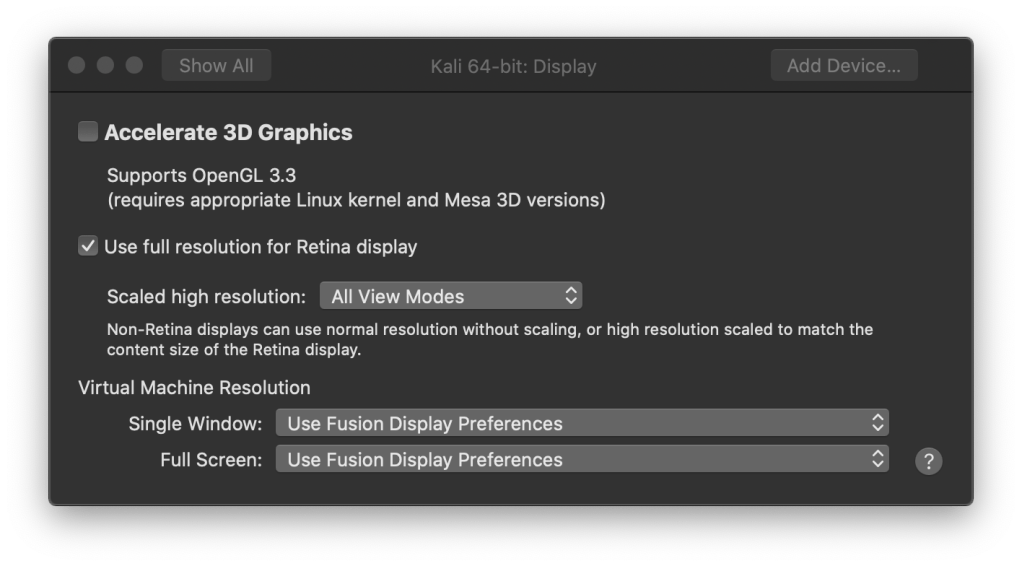
- Enable Use full resolution for Retina display in the VMware Display settings.
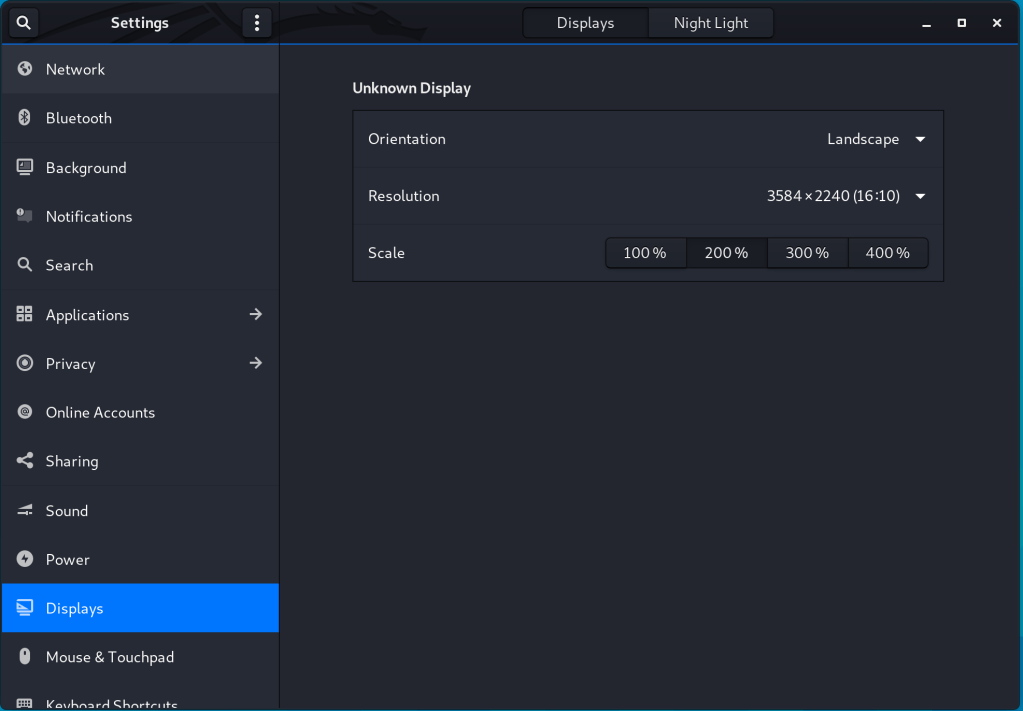
- Select Gnome as the desktop environment in the installer (the default is XFCE). It allows you to enable 200 % scaling in Gnome display settings, making the graphics compatible with the Retina setting configured earlier.
That’s it! My virtual Kali machine now looks good as well as being more responsive and integrated.
 dhk
dhk 